Quick Tutorial : Copilot with Excel
How to get started and start using Copilot that is there to help you with Excel . Get started today , it's very simple
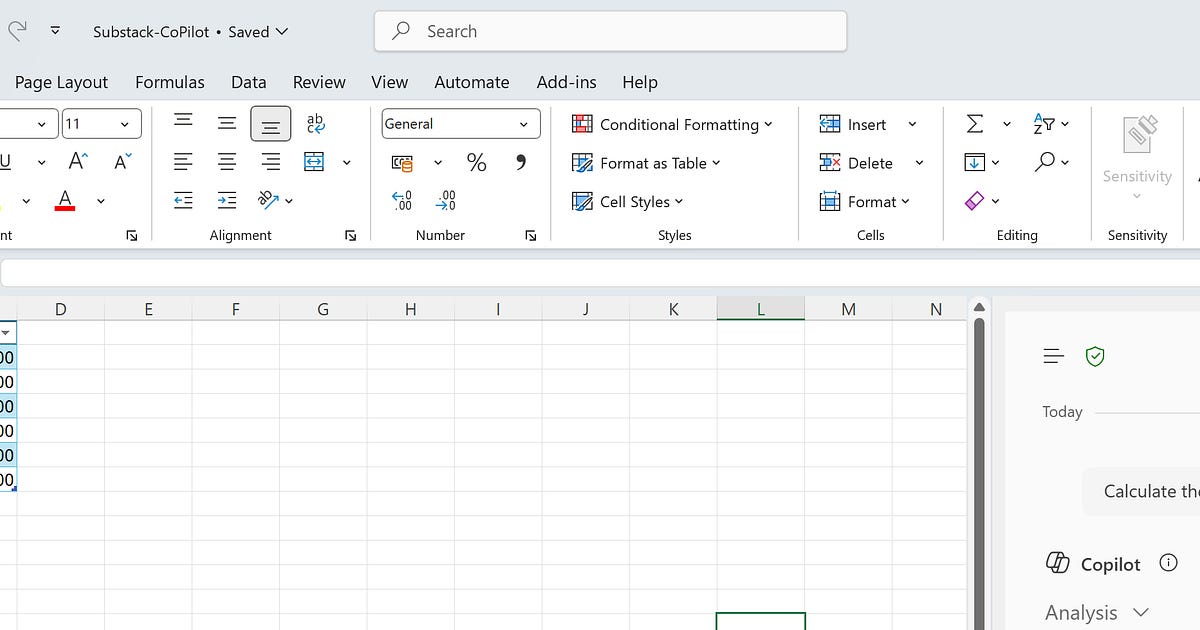
Here’s a ready-to-use sample data set and step-by-step actions you can execute in Excel using Copilot. This practical example helps you try out both data analysis and formula generation with simple Copilot prompts.
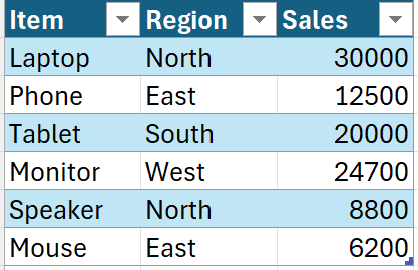
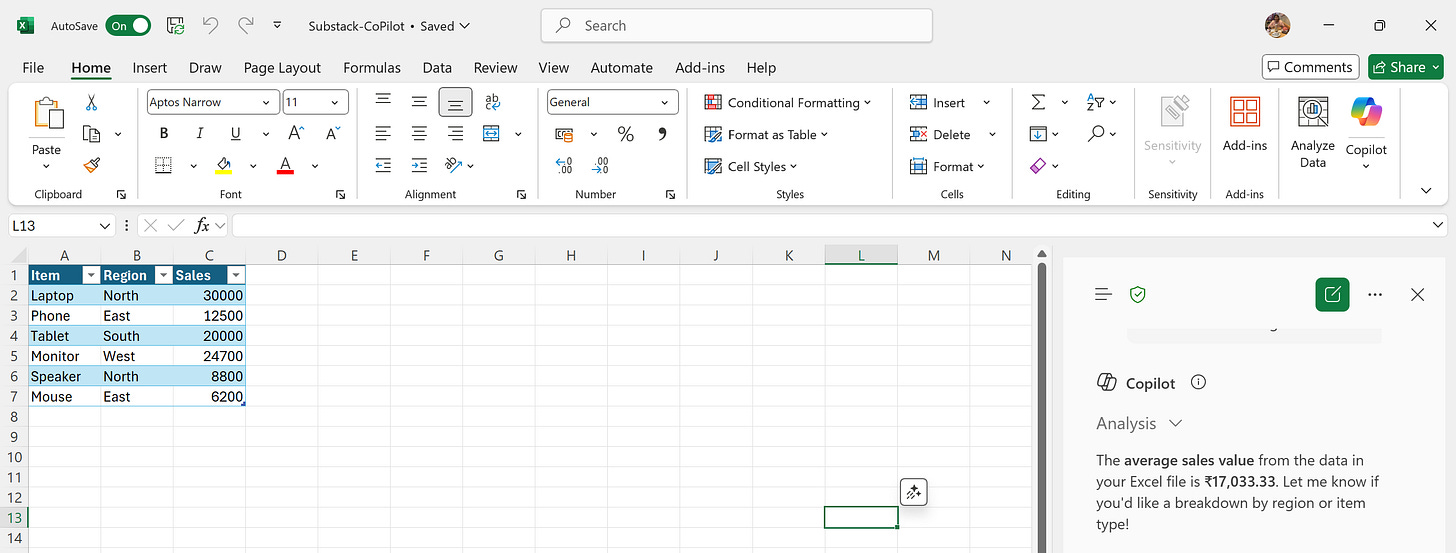
Sample Data for Excel Table
Copy and paste this data into Excel Cell A1 (so that headers are in row 1):
Step-by-Step Instructions
Step 1: Format Data as Table
Select your data range (including headers).
Press Ctrl + T to convert it into a table, or choose “Format as Table” from the Home ribbon.
Name your table if you wish (e.g., “SalesData”).
Make sure to save it in one drive - on cloud only then copilot works
Step 2: Activate Copilot
On the Home tab, click the Copilot icon to launch Copilot pane.
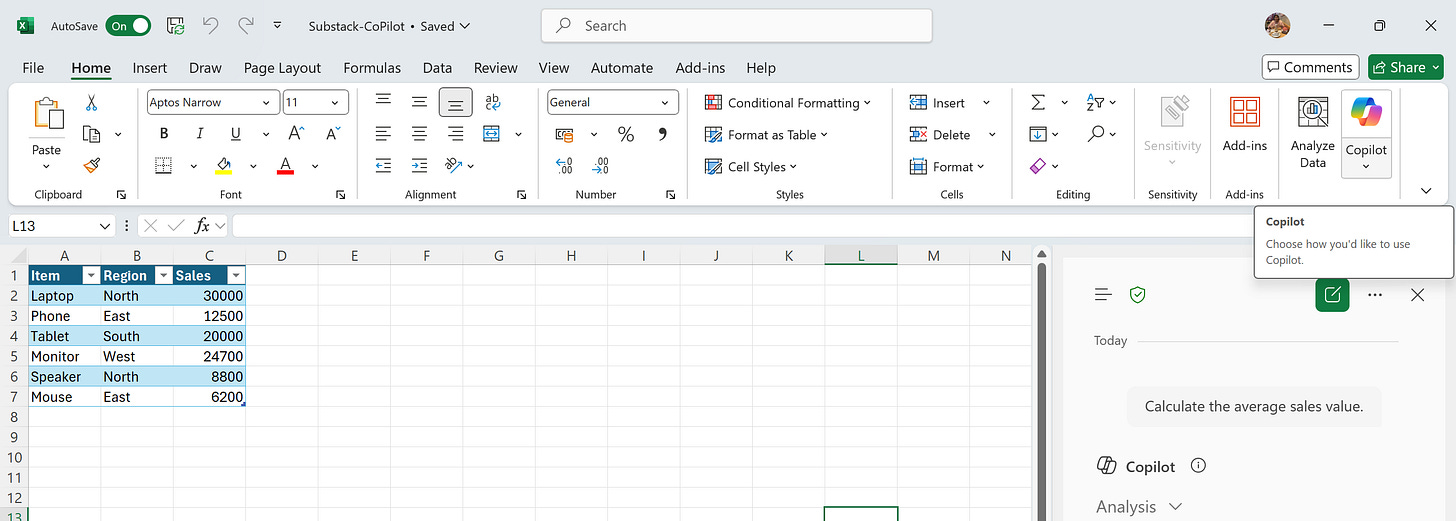
Step 3: Test Prompts
Type these prompts in the Copilot pane, one at a time:
“Calculate the average sales value.”
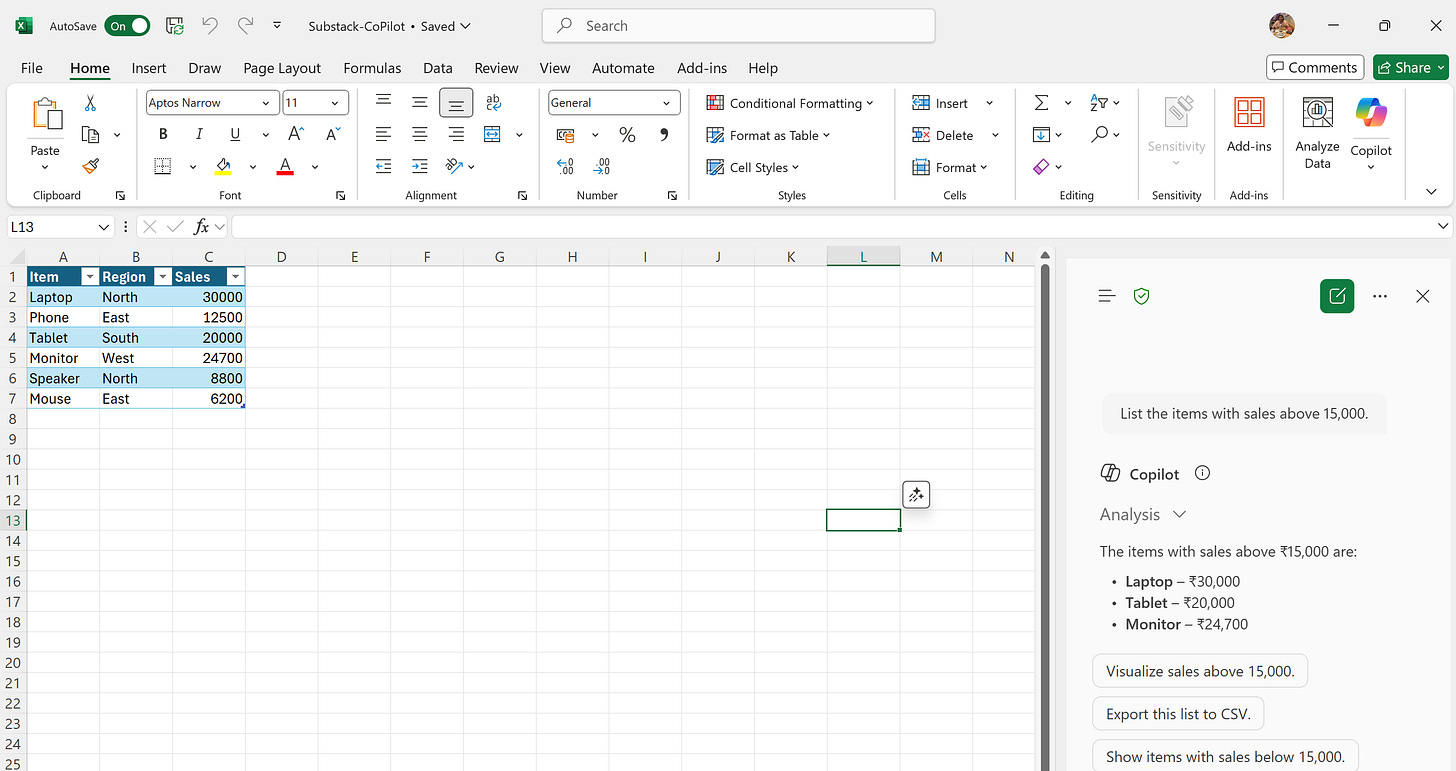
“List the items with sales above 15,000.”
“Create a bar chart showing sales by item.”
“Summarize sales by region.”
Copilot will process your request and either preview an answer, generate a formula, or suggest a visual.
Review Copilot’s suggestions and click ‘Insert’ to apply any that look correct.
Step 4: Explore More
Try additional prompts:
“Add a new column showing sales tax at 5% for each item.”
“Highlight all rows where sales are below 10,000.”
“Sort items by sales from highest to lowest.”
Tips for Execution
Make sure your data is formatted as a table for best Copilot results.
Use clear language prompts, as shown above.
Copilot will display preview results and explanations—review before inserting.
Use Undo (Ctrl + Z) to revert if a suggestion isn’t helpful.
You can now follow these steps in Excel directly and see Copilot in action with your own data.
Comment if there is any specific scenario you need help with or want to attend my free session on Copilot with Microsoft 365
Originally published on Substack