How to Fix Power BI to Excel Connectivity Issues (with Video Guide)
Ever hit a frustrating error when connecting Excel data to Power BI? If you’ve seen the dreaded message about the ‘Microsoft.ACE.OLEDB.12.0’ provider not being…
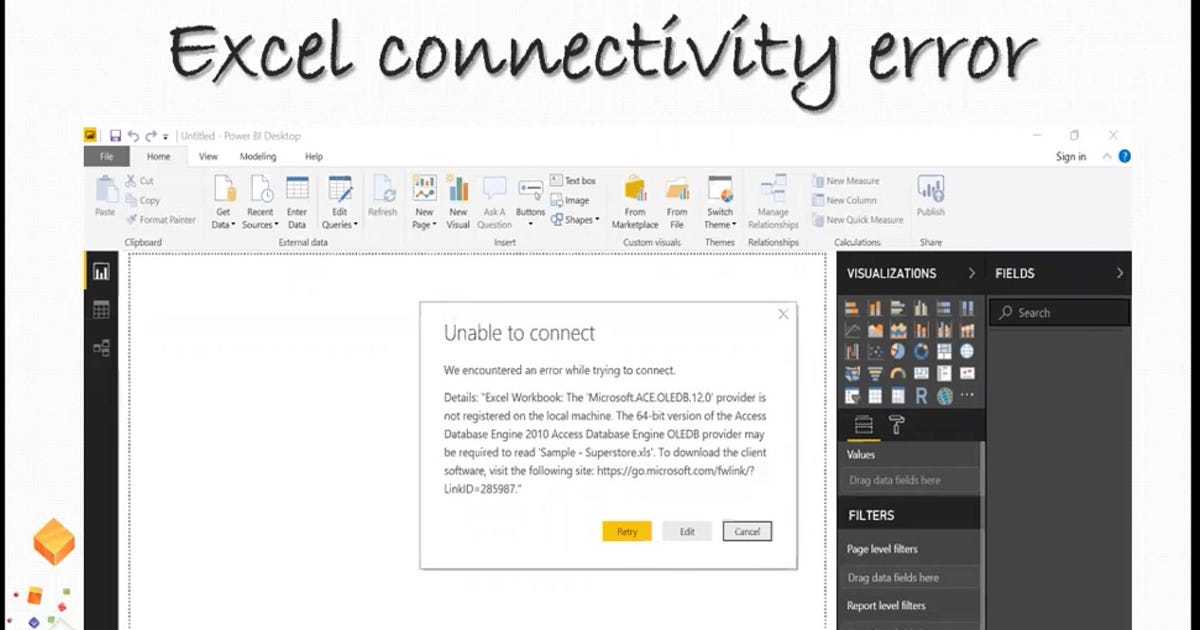
Ever hit a frustrating error when connecting Excel data to Power BI? If you’ve seen the dreaded message about the ‘Microsoft.ACE.OLEDB.12.0’ provider not being registered, you’re not alone.
In today’s post, I’ll break down a proven, practical fix—plus share a quick demo video to guide you through every step .

The Problem: Power BI Can’t Read Old Excel Files
Power BI is fantastic for data visualization, but it sometimes trips over older Excel file formats, like those from Excel 97–2003 (.xls). The common error?
Excel Workbook: The ‘Microsoft.ACE.OLEDB.12.0’ provider is not registered on the local machine. The 64-bit version of the Access Database Engine 2010 may be required…
This usually means your Excel file is in an older format or missing certain database drivers required by Power BI to read it.[youtube]
The Solution: Save as a Modern Excel Workbook
Here’s a step-by-step fix right from the video:
1. Open your old Excel file (.xls) in Microsoft Excel.
2. Click “Save As” and choose the modern “Excel Workbook” format (.xlsx).
3. Save the new file in your preferred location. You’ll now have both the original and a new .xlsx version.
4. Go to Power BI, click “Get Data,” and select the new .xlsx file.
5. Watch as Power BI loads your tables successfully—no more errors or workarounds required!
This method resolves the OLEDB provider error because Power BI works natively with newer Excel file types.[youtube]
Why This Fix Matters
• Saves those frantic troubleshooting hours, especially when prepping for Power BI interviews or client demos.
• Future-proofs your data import process—all new Excel workbooks will connect smoothly to Power BI.
• No need to install extra drivers or make complex setting tweaks.
See the Step-by-Step in Action
Check out the full walkthrough in this quick video tutorial (and don’t forget to subscribe for more tech tips!):
https://m.youtube.com/watch?si=AsKCjSYXvtVactpy&v=jP8RzxxAZPE&feature=youtu.be
Final Takeaway
Always save your Excel files in the .xlsx format before importing into Power BI for the smoothest experience.
Know a fellow data analyst who’d benefit?
Share this post—and help make the world of BI a little less stressful!
Originally published on Substack